

Download QuickFox Notes – Fast, Secure, Free Firefox Note‑Taking Extension
Overview
QuickFox Notes is a lightweight Firefox extension that turns your browser into a handy digital notebook. Designed for researchers, students, and anyone who spends hours surfing the web, it lets you capture snippets of text, URLs, and ideas without leaving the browsing environment. Once installed, a small icon appears on the toolbar; clicking it opens a compact note window that autosaves everything directly into your Firefox Bookmarks folder.
This seamless integration means your notes travel with your bookmark sync services—whether you use Xmarks, Firefox Sync, or a cloud‑based folder like Dropbox—so you never lose critical information. Although the extension lacks a dedicated “Save” button and initially does not support custom note titles, you can rename notes via a right‑click context menu, and future updates are expected to add more conventional UI controls. In short, QuickFox Notes offers a quick, secure way to jot down thoughts while you browse, making it an essential companion for anyone who values efficiency and data safety.
Key Features
- Instant note creation from any webpage with a single click.
- Autosave functionality stores notes directly in the Firefox Bookmarks list.
- Full compatibility with bookmark‑sync services like Xmarks, Firefox Sync, and Dropbox.
- Right‑click context menu for renaming notes and managing note tabs.
- Customizable repository location (hard‑disk or cloud) via Tools > Options.
- Lightweight design that does not slow down browser performance.
- Support for Firefox 4 and later (Gecko 2+), with UI enhancements for modern versions.
- Free to download and use, with regular updates from the developer.
Installation & Usage Instructions
Step‑by‑Step Installation
1. Open Firefox and navigate to the official Add‑ons page for QuickFox Notes.
2. Click the “Add to Firefox” button and confirm the permission prompt.
3. After the extension downloads, a small QuickFox Notes icon appears on the toolbar.
Customizing the Toolbar
To place the icon where you prefer, right‑click the toolbar, select “Customize…,” then drag the QuickFox Notes icon to your desired spot and click “Done.” This ensures the note window is always within reach, no matter how many tabs you have open.
Creating and Managing Notes
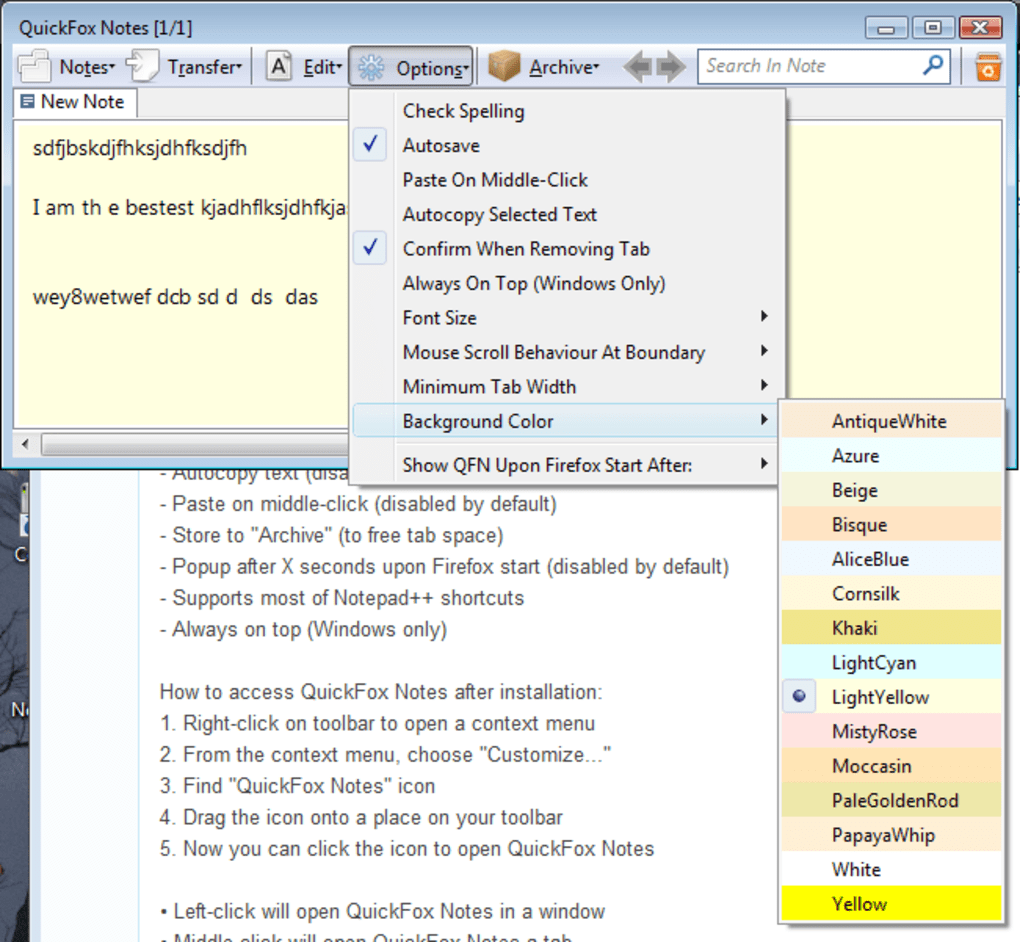
Click the QuickFox Notes icon to open a pop‑up note window. Type or paste any text, URLs, or code snippets. By default, autosave is enabled, so every keystroke is saved instantly to your Bookmarks folder under a sub‑folder named “QuickFox Notes.” If you prefer manual control, toggle the autosave option in the extension’s settings panel. To rename a note, right‑click its tab and select “Rename.” This flexibility lets you organize research topics, to‑do lists, or reference links without cluttering your main bookmark hierarchy.
Syncing Your Notes Across Devices
For seamless access, pair QuickFox Notes with a sync service. Xmarks (now part of PayPal) historically offered cross‑browser sync, while Firefox Sync provides native cloud storage for bookmarks. If you store the repository on a hard disk, you can point the extension to a Dropbox‑synced folder via Tools > Options > Change Repository. Once configured, any note you create on one machine appears on all others in real time, guaranteeing you never lose valuable research material.
Compatibility, Pros & Cons
Supported Operating Systems
QuickFox Notes runs on any platform that supports the Firefox browser, including Windows 10/11, macOS 10.15+ (Catalina and later), Linux distributions with Firefox, and Firefox for Android (via the mobile add‑on framework). While the extension is not available for iOS (due to Apple’s restrictions on browser extensions), the underlying notes are still accessible through synced bookmarks on any Firefox‑compatible device.
Pros
- Instant note capture without leaving the browser.
- Free and open‑source, with no hidden fees.
- Autosave to bookmarks ensures notes are always backed up.
- Works with popular sync services for cross‑device availability.
- Minimal impact on browser performance.
- Customizable repository location for users who prefer cloud storage.
Cons
- No dedicated “Save” button; relies on autosave or manual toggling.
- Initial lack of a naming field can be confusing for new users.
- Feature set is basic; power users may miss advanced formatting options.
- Not available on iOS, limiting mobile workflow for some researchers.
- Occasional UI overflow issues on very narrow toolbars.
FAQ – Frequently Asked Questions
Is QuickFox Notes completely free?
Yes, the extension is free to download and use. There are no hidden charges or premium tiers.
Can I sync my notes with Firefox Sync?
Absolutely. Since notes are saved as bookmarks, enabling Firefox Sync will automatically back up and sync your QuickFox Notes across all devices where you are signed in.
What happens if I disable autosave?
When autosave is turned off, you must manually click the “Save” button that appears in the note window. If you forget to save, any unsaved changes will be lost after closing the window.
Is there a way to organize notes into folders?
Notes are stored under a dedicated “QuickFox Notes” folder in your bookmarks. You can manually create sub‑folders within this directory to categorize notes further.
Will QuickFox Notes work on Firefox for Android?
Yes, the extension is compatible with Firefox for Android, though the UI is slightly adapted for touch screens. Note that some desktop‑only features, like right‑click renaming, are replaced by a long‑press menu.
Conclusion & Call to Action
QuickFox Notes delivers exactly what its name promises: a swift, secure, and free method to capture ideas while you browse. Its deep integration with Firefox bookmarks makes backup and synchronization effortless, especially when paired with Firefox Sync or Dropbox. While the extension could benefit from a few usability enhancements—such as a built‑in save button and native note‑naming—the core functionality is solid and reliable. For researchers, students, or anyone who frequently jumps between web sources, QuickFox Notes is a productivity boost that costs nothing but time.
Ready to streamline your research workflow? Download QuickFox Notes now and start turning every webpage into a knowledge hub.
QuickFox Notes is a well‑crafted Firefox add‑on that fills a niche many users didn’t even know they needed. Its autosave-to‑bookmarks approach guarantees that notes are never lost, and the ability to sync via Firefox Sync or Dropbox means you can access them anywhere. Though the lack of a dedicated save button and an initial naming field can be a minor inconvenience, these are easily mitigated with right‑click options. Overall, it’s a highly recommended tool for anyone who does research online.
Pros
- Instant note capture.
- Free and lightweight.
- Seamless bookmark sync.
- Cross‑platform support.
Cons
- No explicit save button.
- Limited formatting options.
- iOS not supported.







